LIVERY PACK
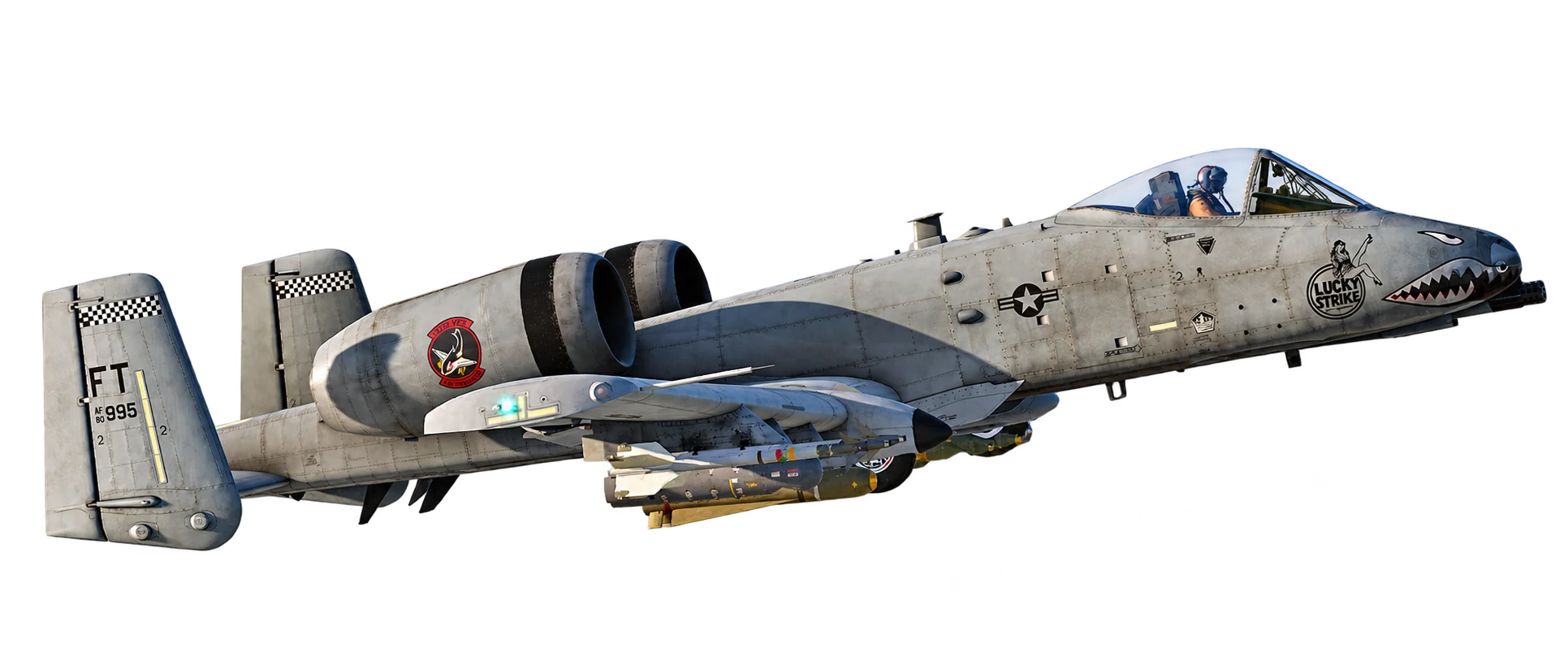
The Tiger Sharks’ signature look. Squadron markings, custom nose art, and a Hawg that feels like yours.
Ready for the next sortie
Three steps. Then fly.
Download & extract
Save the livery ZIP from Drive and extract it. Close DCS before installing.
Copy the livery folders
Place each complete livery folder in
Liveries\A-10CIIbelow. Keep itsdescription.luaand textures together.Choose your colors
Restart DCS and select a squadron livery for your A-10C II in the Mission Editor or the ground crew’s Rearm & Refuel menu.
%USERPROFILE%\Saved Games\DCS\Liveries\A-10CIIUse the profile folder your game already writes to. A custom profile or relocated Saved Games folder needs its own equivalent path.
Need a hand installing?Full walkthrough, livery selection, and troubleshooting
Download and open the pack
Use the download button, then click Google Drive’s Download icon. Right-click the saved ZIP in Windows and choose Extract All…. Open the extracted folders to find the individual liveries.
Find your active Saved Games profile
Press Win + R, enter
shell:SavedGames, and press Enter. Open DCS, or DCS.openbeta if that is the profile you use. Choose the folder containing your existingConfigandLogsfolders; launch DCS once if it has not created a profile yet.Inside that profile, open or create Liveries, then A-10CII. Use this exact aircraft folder name. Steam installs also use Saved Games. If you moved Saved Games or use a custom
-wprofile, use its equivalent location.Install each complete livery folder
Each named livery folder should contain description.lua and its supplied texture files. Copy those complete folders into Liveries\A-10CII, keeping all filenames and contents together. If the download includes an A-10CII wrapper, copy the individual livery folders from inside it.
Example finished structure
Liveries\A-10CII\<livery folder>\description.luaAvoid an extra ZIP-name or A-10CII folder level. Keep unrelated liveries. Back up any personally edited files before replacing matching files during an update.
Select the livery in DCS
Restart DCS. In the Mission Editor, select an A-10C II unit and choose the squadron livery from its paint-scheme list. In a mission, select it through the ground crew’s Rearm & Refuel window when available.
Installation references: DCS profile folders ↗ · A-10C II livery folder ↗